Start using your laptop's firewall like a pro. Here's how.
Turning on the firewall was just the start. Welcome to infosec. Slightly paranoid, always on-guard.
New to this? Start with Part 1, which turns the firewall on and sets the basics.
Every service on your laptop that waits for a connection is something a stranger's device on the same Wi-Fi can try to reach. Here's what to shut down, what's your call, and what to let ride. All in Settings. Every change has an undo.
What it already blocks, and what it lets through
On Windows 11, the firewall is on by default. It blocks incoming connections unless you asked for them or a rule allows them, and it lets everything outgoing through.
On a Mac, the firewall judges incoming connections, and it works by app, not by port. Two switches can let Apple's software and signed downloaded apps in without asking you. Apple doesn't say whether the firewall or those switches are on out of the box. Check yours in System Settings > Network > Firewall.
So the firewall switch is only half of it. The other half is everything you've turned on that waits for connections: a sharing switch, a remote-access feature, an app you once allowed.
First move: Public on Windows, Sharing on a Mac
Part 1 put every Windows network on Public. If you skipped it, do it now: on Public, your PC is hidden from other devices and can't share files or printers. Microsoft recommends Public in most cases, home and work included.
On a Mac, the list that matters is Sharing. Apple says every service you turn on there can connect through the firewall.
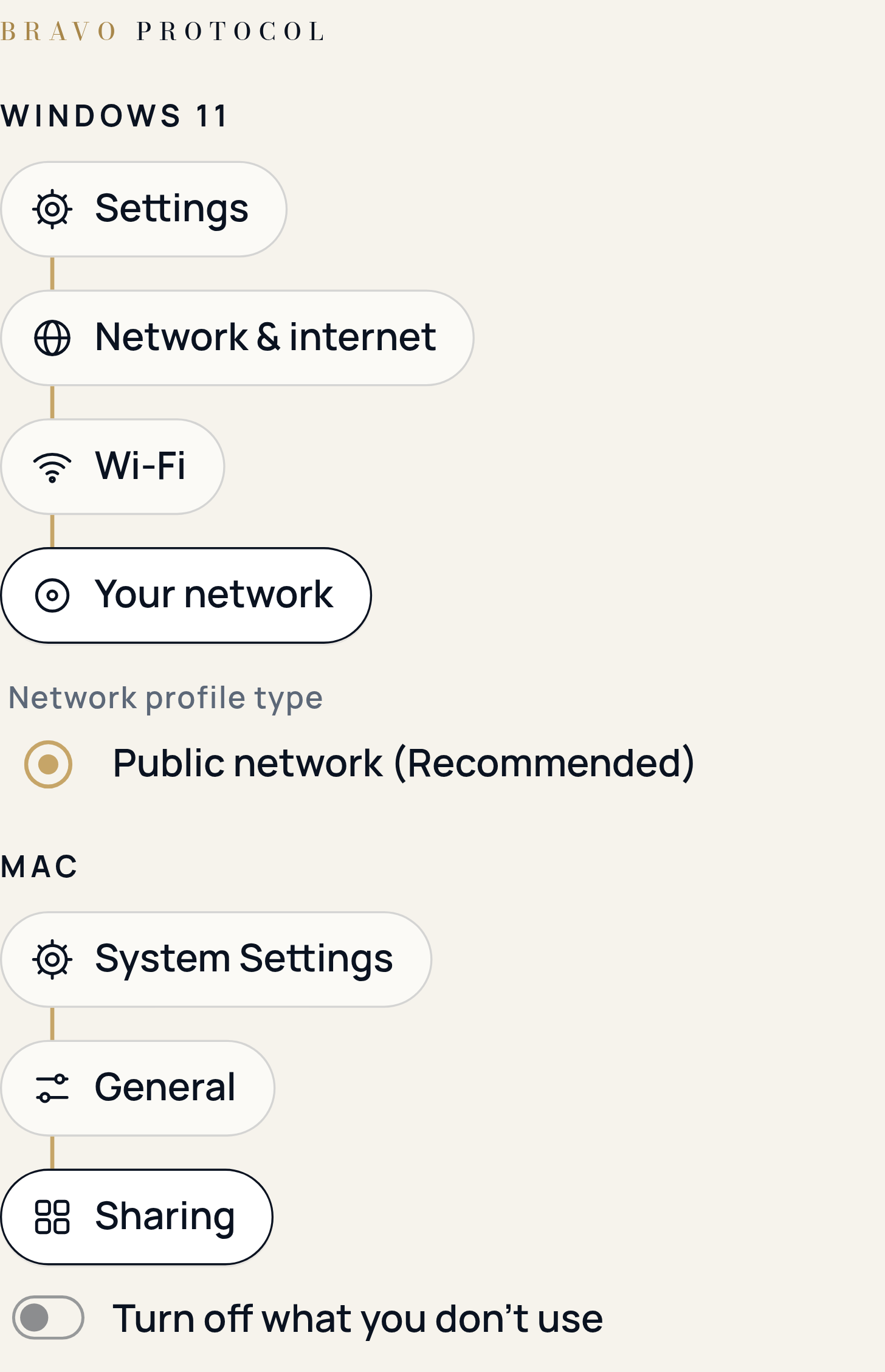
On Windows, go to Settings > Network & internet > Wi-Fi (or Ethernet), select your network, and under Network profile type choose Public network (Recommended). On a Mac, open System Settings > General > Sharing and read every switch. Apple doesn't say which ones start off, so check yours.
Undo: choose Private again, or turn the switch back on.
Shut it down
Each of these lets another device in. NIST says to remove every service you don't need. Applying that to a laptop is our call: unless you use it on purpose, turn it off.
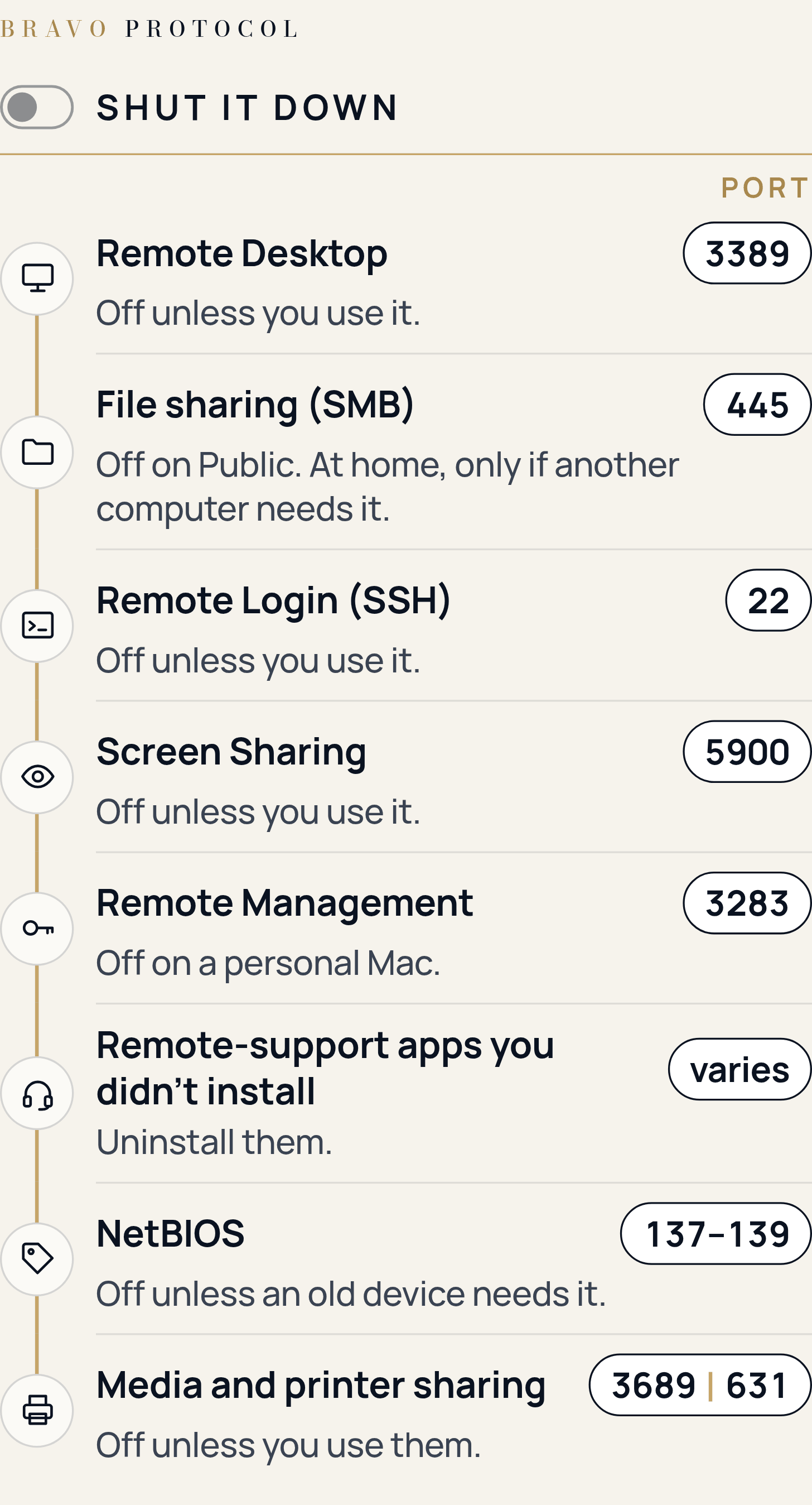
- Remote Desktop (Windows, port 3389). Someone signs in and controls your whole PC over the network. CISA tells organizations to turn off RDP when it isn't used. Our call: same for your laptop. Find it at Settings > System > Remote Desktop (Pro editions only). If it's off: nobody can remote into this PC. You can still connect out to others.
- File sharing, SMB (both, port 445). Shares your folders. The NSA says to turn it off on public Wi-Fi. Our call: off unless another computer at home needs your folders, and never on Public. Mac: Sharing > File Sharing. Windows: search Settings for Manage advanced sharing settings and turn off File and printer sharing. If it's off: others can't open your shared folders. You can still open theirs.
- Remote Login, SSH (both, port 22). Command-line login from another machine. On Windows the SSH server isn't there until you add it, and adding it opens port 22. Our call: off unless you use it. Mac: Sharing > Remote Login. Windows: search Settings for Optional features and look for OpenSSH Server. If it's off: no SSH into this laptop. SSH out still works.
- Screen Sharing (Mac, port 5900). Others see and control your screen. Our call: off unless someone you trust helps you this way. Sharing > Screen Sharing. If it's off: nobody can view or control this Mac remotely.
- Remote Management (Mac, port 3283). Admin-level remote control, the kind IT teams use. Our call: off on a personal Mac. On a work Mac, leave it and ask IT. Sharing > Remote Management. If it's off: IT can't manage the Mac remotely.
- Remote-support apps you didn't install on purpose (both, port varies). CISA and the NSA warn that attackers use legitimate remote-support software as a backdoor, often after a fake help-desk call or email. Uninstall any you don't recognize. They show up in the Mac Firewall > Options list and the Windows allowed apps list. If you remove one: a real helper can't connect until you reinstall it.
- NetBIOS (Windows, ports 137 to 139). Old Windows naming and sharing. CISA and the NSA say attackers spoof it to steal password hashes. Our call: leave its inbound rules unchecked unless a very old printer or file server needs them. If it's blocked: some very old devices stop showing up.
- Media Sharing and Printer Sharing (both, ports 3689 and 631). Others stream your library or use your attached printer. Our call: off unless you use them. Mac: Sharing > Media Sharing and Printer Sharing. Windows: printer sharing goes off with File and printer sharing. If they're off: others can't use your library or printer. Your own printing still works.
The rest of the Mac Sharing list gets the same treatment: Remote Application Scripting, Internet Sharing and Bluetooth Sharing stay off unless you use them.
On Windows, one list shows most of what's let in.
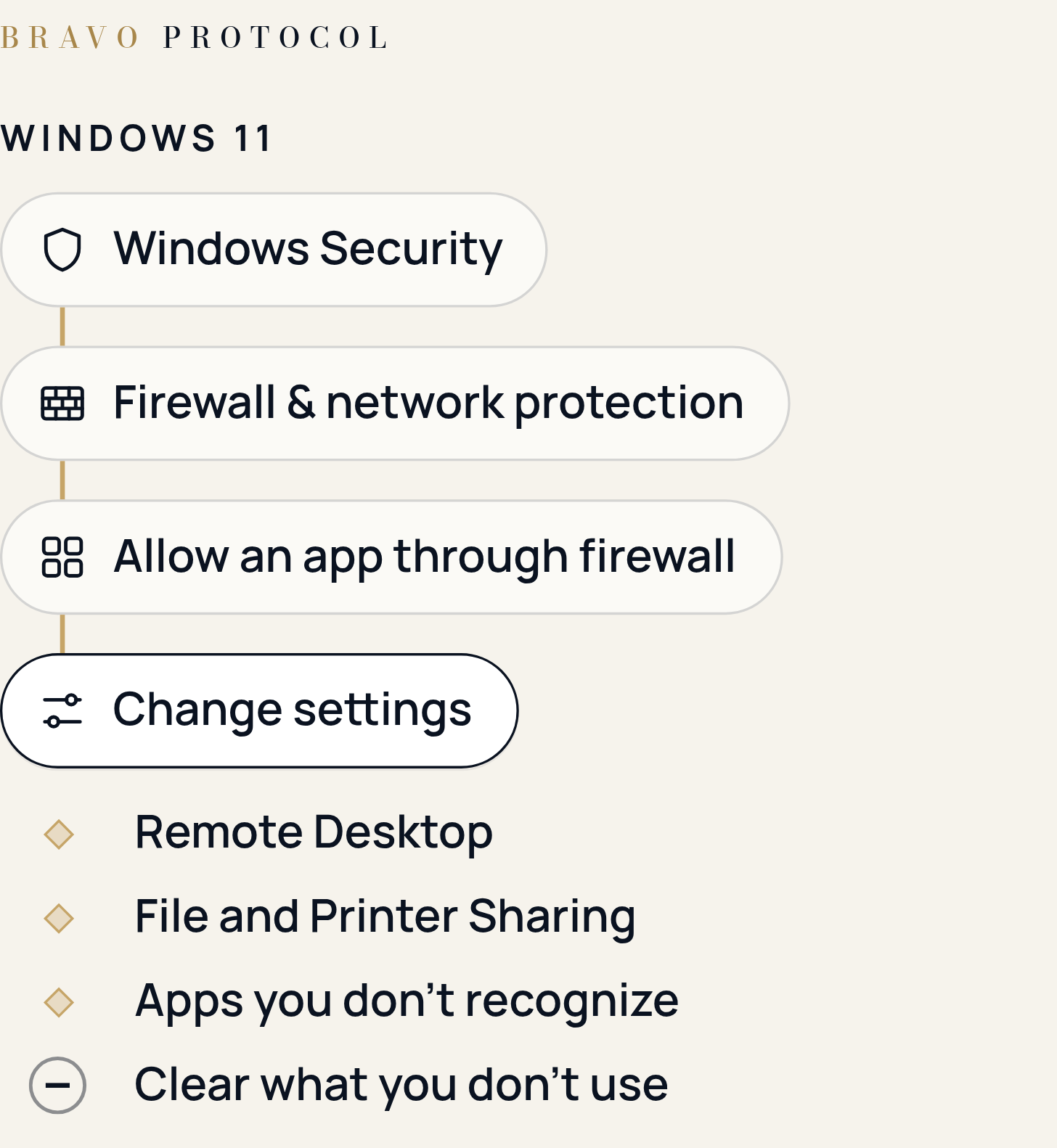
This is the list from Part 1. Now you know what to look for: Remote Desktop, File and Printer Sharing and any app you don't recognize. Open Windows Security > Firewall & network protection > Allow an app through firewall, select Change settings, clear what you don't use, then select OK.
Undo: check the box again.
Your call, paranoid friend
Each of these makes your laptop easier to find, fool or reach. Whether that matters depends on where you are and what you use.
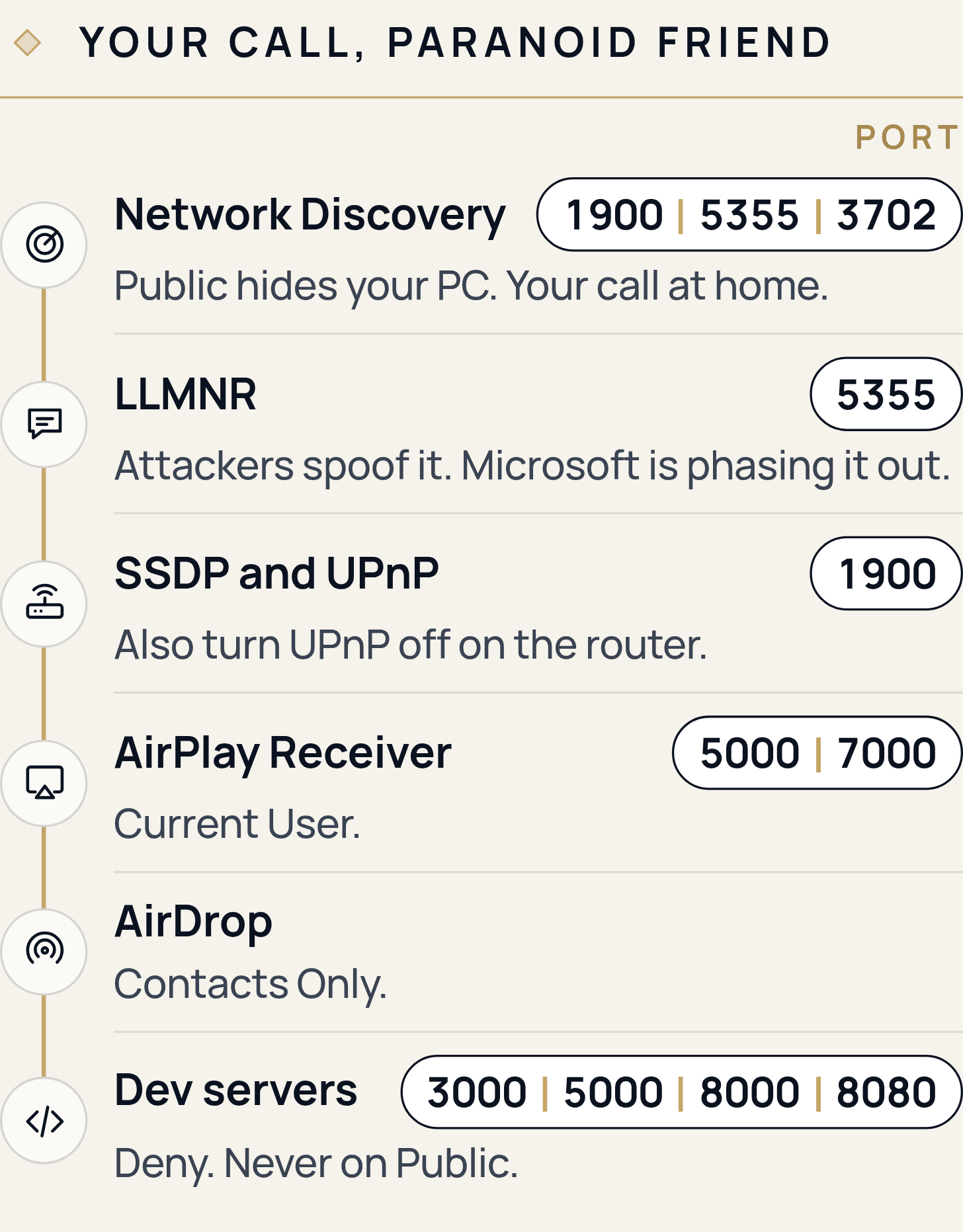
- Network Discovery (Windows, ports 1900, 5355 and 3702). Lets your PC see other devices and be seen by them. Our call: off at home, unless you browse other computers or printers in File Explorer > Network. It's in Manage advanced sharing settings. If it's off: other PCs and devices don't appear there.
- LLMNR (Windows, port 5355). An older way for Windows to find nearby computers by name. CISA and the NSA say attackers spoof it too, and Microsoft is phasing it out. Our call: if nothing on your network needs it, leave its inbound rule unchecked. If it's blocked: some older devices can't be found by name.
- SSDP and UPnP (both, port 1900). Devices announcing themselves for casting and media. Our call: let Network Discovery decide on the laptop, and turn UPnP off on your home router, as the NSA recommends. If it's blocked: some TVs and speakers stop showing up as casting targets.
- AirDrop and AirPlay Receiver (Mac; AirPlay uses ports 5000 and 7000). People nearby can send you files or play to your screen. Our call: AirDrop on Contacts Only, and Allow AirPlay for set to Current User. Both are in System Settings > General > AirDrop & Continuity. Then: strangers can't AirDrop to you or play to your Mac.
- Dev servers (both, usually ports 3000, 5000, 8000 or 8080). Coding tools start small web servers, and your laptop asks once whether to allow connections. Our call: Deny, unless another device has to reach it, and never allow on Public. If you deny: your phone on the same Wi-Fi can't open your test site.
Let it ride
Some names look alarming in a rule list. Blocking these breaks your own laptop.
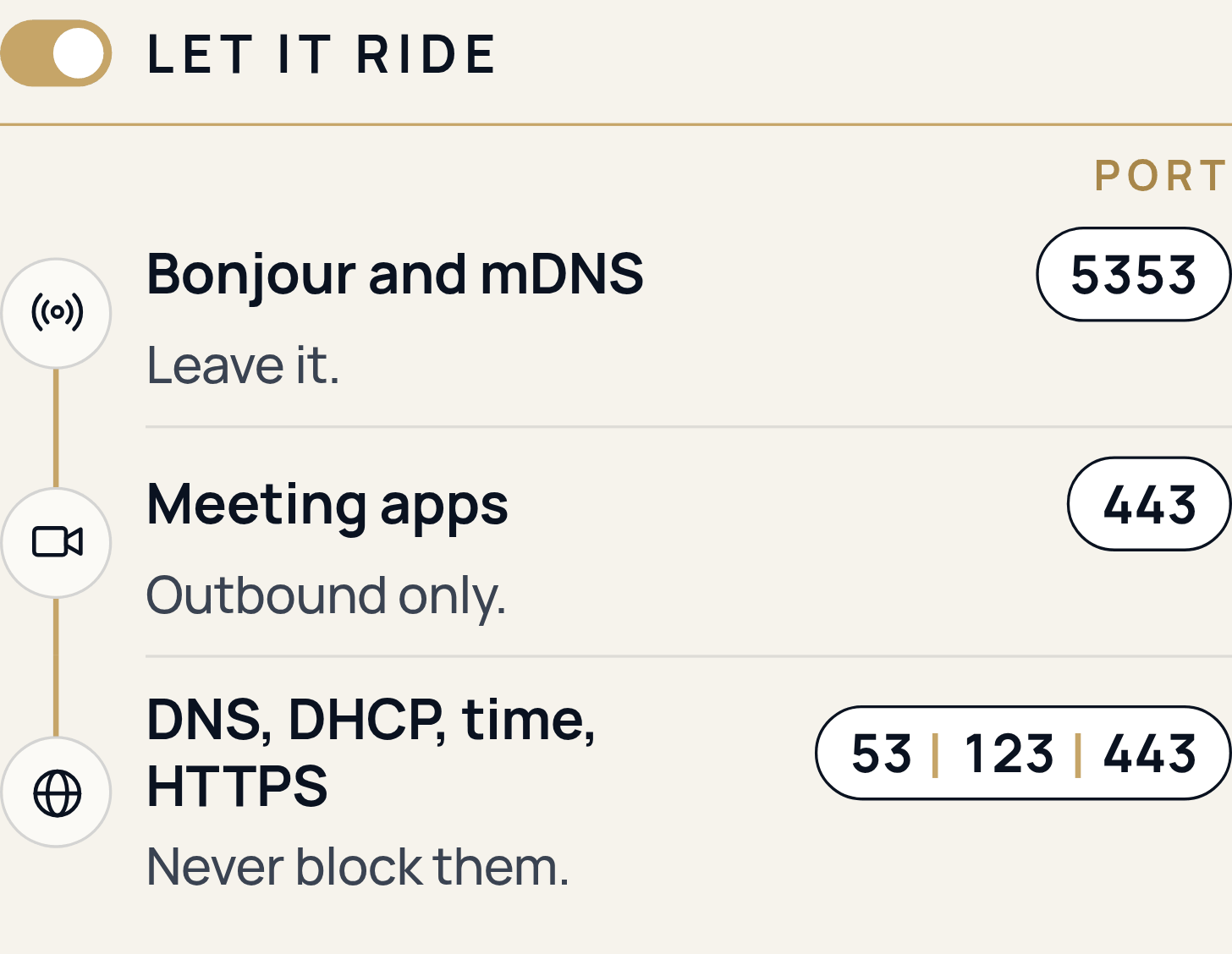
- Bonjour and mDNS (both, port 5353). Finds printers and AirPlay devices with no setup. Apple keeps it working even when you block all incoming connections, and Microsoft is making it the standard on Windows. Our call: leave it.
- Meeting apps (both, outgoing on 443). They connect out to their own servers. Windows allows outgoing connections by default, and the Mac firewall is about incoming ones. Our call: leave them.
- DNS, DHCP, time and HTTPS (both, ports 53, 123 and 443). Your address, name lookups, the clock, updates, iCloud and Find My. Apple lists those last ones on outgoing port 443. Our call: never block them. If you do: nothing works.
Five minutes after every install
Do it now, too.
On a Mac, open System Settings > Network > Firewall > Options. For each app, ask: do I know it, and does it need connections from other devices? If either answer is no, set it to block. Apple says some system apps and services get through without appearing here, so the Sharing list still matters.
On Windows, the full list lives in Windows Defender Firewall with Advanced Security.
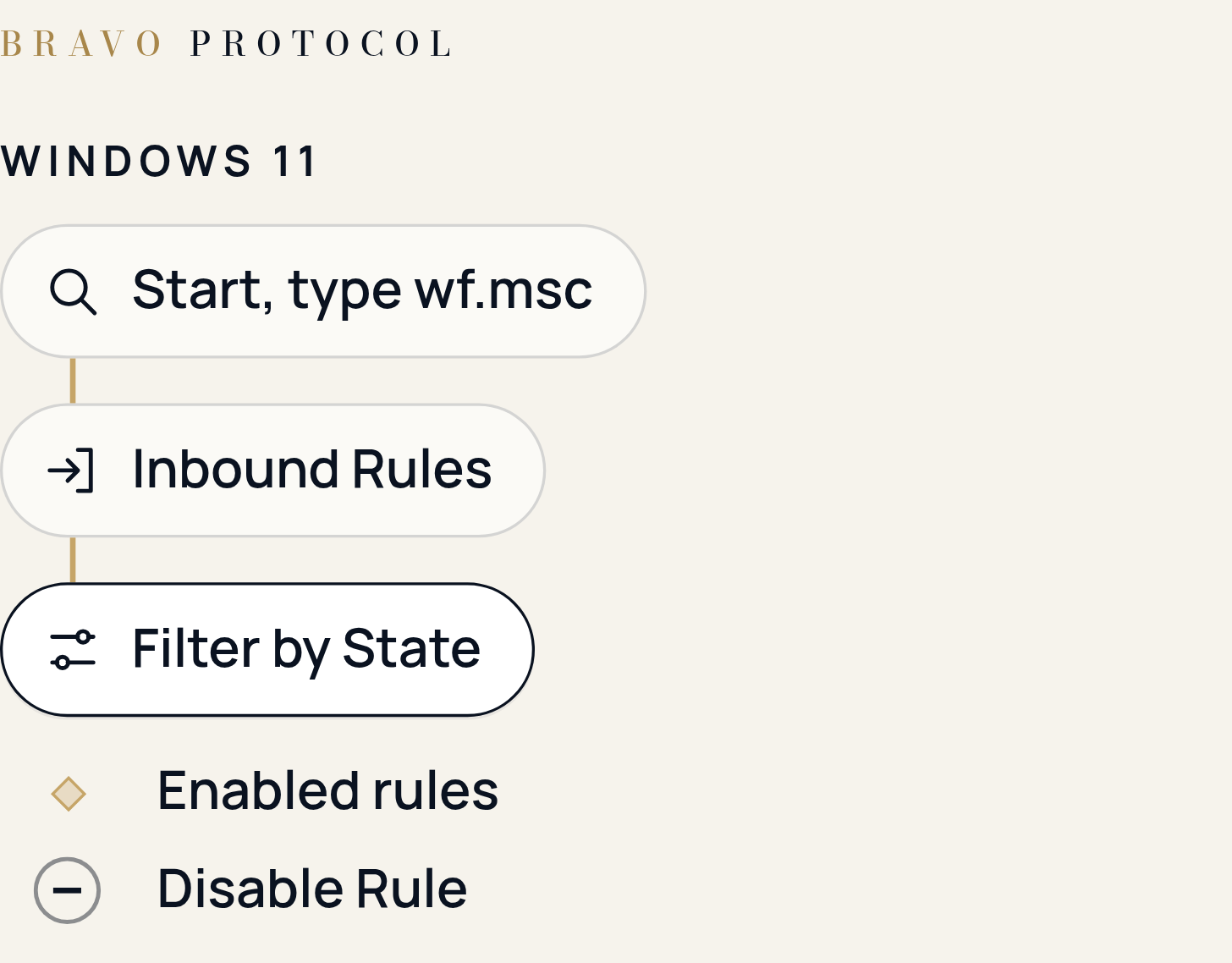
Select Start, type wf.msc and press Enter. Select Inbound Rules, then Filter by State > Filter by Enabled to show only enabled rules. Look for Remote Desktop, File and Printer Sharing and Network Discovery, and for any app you removed or don't recognize. To turn a rule off, select it and choose Disable Rule.
Undo: select the rule and enable it again.
The ports behind each call
Save these three images. When a rule list or an app prompt shows a port number, find it here.
If something breaks
Undo the last thing you changed, then test again. On a Mac, set the app back to allow in Firewall > Options, or turn the Sharing switch back on.
As a last resort on Windows, Restore firewalls to default in Windows Security > Firewall & network protection puts the firewall back the way it was when you got the PC. Every rule you added goes with it.
Shut what you don't use. Decide the rest on purpose. Check again after every install.
About the author
Editor in chief, The Bravo Protocol
Real-world experience as VIP security, engineer, and United States Marine. Classically trained in Information Management, Security, and Network Assurance with a specialization in IT forensics.
An expert advisor that's led teams and engineering initiatives for Fortune 500 companies and an AI/ML unicorn startup.
Sources and notes
What each source supports in this guide. Pages opened Oct 29 and 30, 2026.
Apple
- Change Firewall settings on Mac, Mac User Guide (macOS 27). The Mac firewall judges incoming connections, and the two automatic-allow switches for Apple software and signed downloaded apps.
- Block connections to your Mac with a firewall, Mac User Guide (macOS 27). Every Sharing service you turn on can connect through the firewall, and some system apps and services get through without appearing in the Options list.
- Change Sharing settings on Mac, Mac User Guide. Where the Sharing list lives: System Settings > General > Sharing.
- Change AirDrop & Continuity settings on Mac, Mac User Guide. Where AirDrop and Allow AirPlay for are set.
- TCP and UDP ports used by Apple software products, Apple Support. The Mac firewall works by app, not by port; the ports for Apple services in the reference; iCloud and Find My on outgoing port 443.
Microsoft
- Windows Firewall overview, Microsoft Learn. On by default; blocks unrequested incoming connections; lets outgoing traffic through.
- Essential network settings and tasks in Windows, Microsoft Support. New networks start as Public; Public hides the PC and turns off file and printer sharing; Public is recommended in most cases; the Network profile type path.
- Firewall and network protection in the Windows Security app, Microsoft Support. Allow an app through firewall, and Restore firewalls to default as the last resort.
- How to use Remote Desktop, Microsoft Support. Where Remote Desktop is switched on and off, and that hosting it needs a Pro edition.
- Get started with OpenSSH Server for Windows, Microsoft Learn. The SSH server is an optional feature, and adding it opens port 22.
- Aligning on mDNS: ramping down NetBIOS name resolution and LLMNR, Microsoft Networking Blog (2022). Microsoft is phasing out LLMNR and making mDNS the standard. It's a 2022 post; current shipping state not confirmed.
US government
- Top Ten Cybersecurity Misconfigurations, CISA and NSA. Attackers spoof NetBIOS and LLMNR to steal password hashes.
- Protecting Against Malicious Use of Remote Monitoring and Management Software, CISA, NSA and MS-ISAC. Attackers use legitimate remote-support software as a backdoor, often after a fake help-desk call or email.
- #StopRansomware Guide, CISA. Turn off RDP when it isn't used. Written for organizations; applying it to a personal laptop is our call.
- Best Practices for Securing Your Home Network, NSA. Turn UPnP off on the home router.
- Securing Wireless Devices in Public Settings, NSA. Turn off file sharing on public Wi-Fi.
- NIST SP 800-123, Guide to General Server Security, NIST. Remove every service you don't need. Written for servers; applying it to a laptop is our call.
Our calls
Every line marked "Our call" is our editorial judgment, resting on the sources above. Where we connect two facts a vendor didn't connect, the text says so.